
Death, Taxes and Asset Management
As the old saying goes, you can’t escape the inevitably of death and taxes. At the University of Florida, you can’t escape the inevitability of death, taxes, and asset management. Per the directive from Florida Board of Governors, all University of Florida departments must complete an annual physical inventory of all assets containing sensitive data or prone to theft or loss. This shouldn’t be a complete surprise. If you’re an office manager, you’ve requested a decal for a laptop that a faculty had to take on their overseas conference. If you’re the faculty, you’ve worked with an office manager to get a decal to complete your foreign travel request. This directive includes the already tracked mobile computing property, with the new addition of covering property that can contain sensitive data. Simply stated– if it has a storage drive, it needs an asset decal. Do you have a UF desktop that never leaves your campus office? It still needs a decal! It doesn’t matter if it’s a Dell desktop or an Apple iMac. If you can save a picture of a cat skateboarding on rainbow to that device—decal it. This includes external storage drives, too! As soon as you get computing property delivered, get the decal so it arrives as soon as possible. Once you have the decal, please provide that decal number when you submit a ticket for CLAS IT Techs to set up the device. The decal should be sent to your department PO box by the time we come back to deploy the computer.
Now that you understand what needs to be tracked, how do you track it? Again, I’m certain most of you reading this know the answer. As a refresher, here is the UF Asset Management FAQ page: FAQs – Finance & Accounting. This page answers important questions regarding when attractive assets need to be inventoried, and who is responsible for certifying assets. The BATS team has been making a lot of changes to the myAssets portal, so here is the new way to add, and track, a new attractive asset:
NOTE: Only department admins, like Chairs, Directors, and office staff, are expected to have access to the myAssets portal. Faculty are not expected to request their decals. If you aren’t with the department administration, please contact your office manager for assistance with managing an asset!
Go to the following link to access myAssets: myAssets – All Property
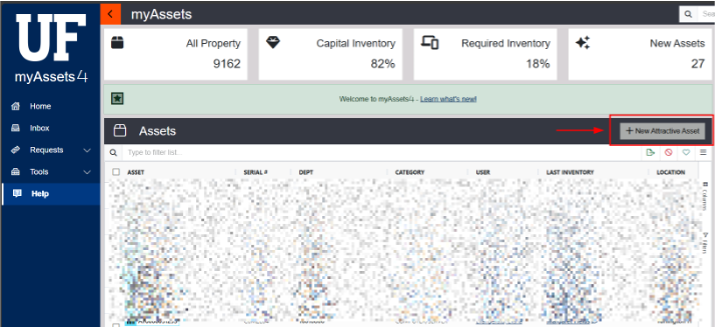
After clicking the “+New Attractive Asset” button, you’ll see the attractive asset form. Make sure to fill in the following fields:
- Description — Ex: Dell OptiPlex 7000, Apple MacBook Air
- Serial — Service Tag or Serial Number for the computer property. You can check for this number on the side of the box the computer came in. Vendors almost always put the service tag/serial number on the box. It will be labelled as “service tag” or “serial number”. If you aren’t sure, call CLAS IT.
- Category – Select Computer/Server for desktops and Mobile Computing for laptops
- Sub Category – Select the option that best fits the device. It will most likely be “Desktop” or “Laptop”. You may need another option, so use your best judgement. This can be changed if needed
- Manufacturer – Ex: Dell, Apple, Lenovo
- Model – Ex: OptiPlex, Pro Slim Plus, MacBook Air
- Flags – If it’s a mobile device (laptop, tablet), select the OFFSITE flag. Don’t worry about the other flags. All mobile devices must be labelled as offsite and certified by the user in possession of the offsite asset
- Location – Building and room number where the asset will live. If it is offsite, put in the user’s office number. All offsite property will be certified, so the user will provide the offsite location.
- User – Assigned user of the asset. This person will be responsible for certifying the asset once a year. The user will be emailed by the Asset Management team with a link to the certification portal. It takes less than 5 minutes to complete.
- Financial – Add your department ID and any other important fiscal information. This helps with knowing what funds the item was purchased with.
- Don’t worry about the hardware fields –like MAC address, hostname, or warranty. That can be added later when CLAS IT finishes completing the computer deployment
- Select the green “Save” button at the top of the form to submit. Congrats! You’ve submitted a new attractive asset! You will immediately be provided with a decal number for reference. The physical decal will be sent to the PO box associated with your department. If you need a decal immediately, you can call Matthew McEwen at (352) 294-1792 to have it held for pickup.
This was just a small step-by-step for requesting a decal. There are many features to the myAssets portal and more should be added in the coming future. Please check the links provided to find out more information. The Asset Management team are hosting Lunch and Learns for those with asset management roles, so make sure to look out for those emails!
Asset Management Attractive Asset Directive: Annual Inventory for Attractive Property – Finance & Accounting