Webex can be installed through the CLAS Software Center application on CLAS-managed Windows devices.
If you are not on a CLAS-managed device, download the Webex client from here: https://www.webex.com/downloads.html
On your CLAS-managed Windows device, open the CLAS Software Center.
Double-click the CLAS Software Center icon on your Desktop

Or go to Start > All apps > Software Center.
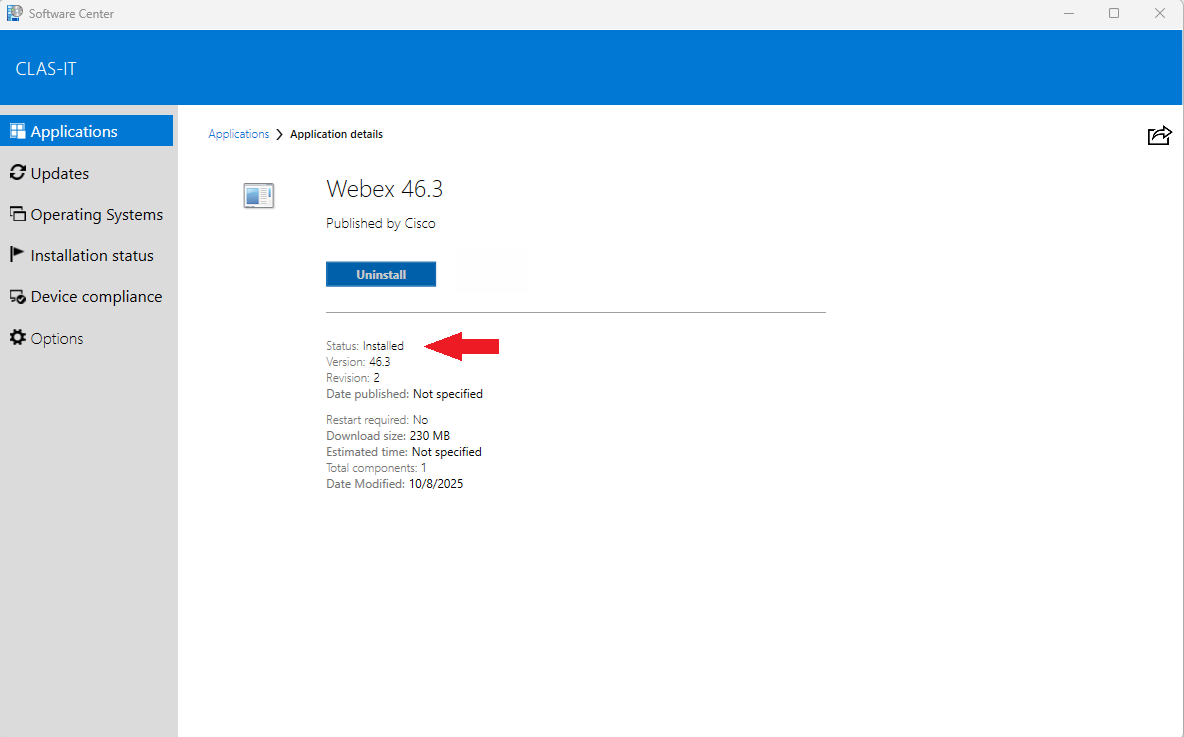
The Application tab is loaded by default. Select Webex from the grid.

Click Install. The progress status will display, and you will be notified once it completes.

Start Webex and select Sign in.
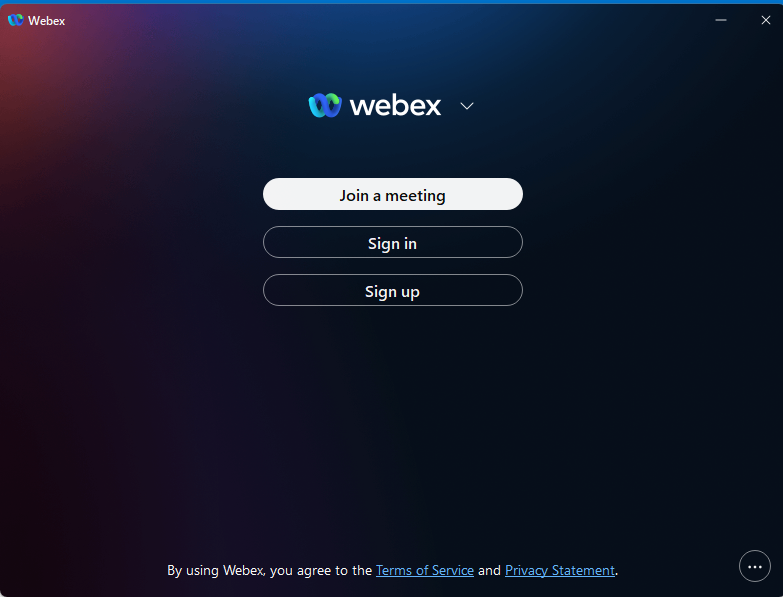
Enter your Gatorlink email address and select Next.

This brings up the standard shibboleth login.
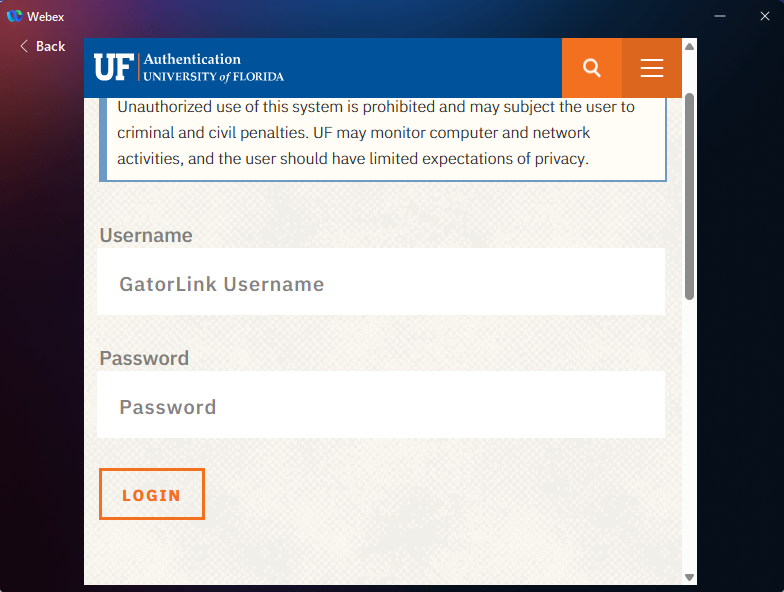
Once you’ve signed in, Webex will run in the background and will start automatically any time the machine is turned on.
Information for using Webex can be found here: Webex Information and Tips